
Download Genie Timeline – Simple Two‑Stage Backup Tool for Windows & macOS
Overview
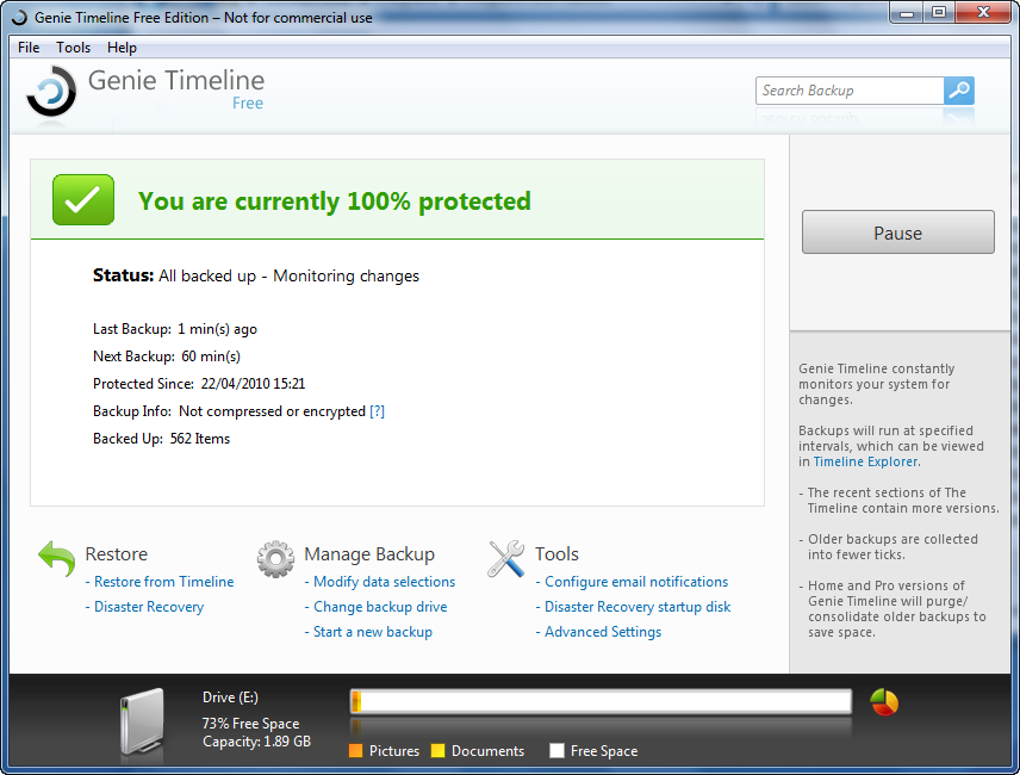
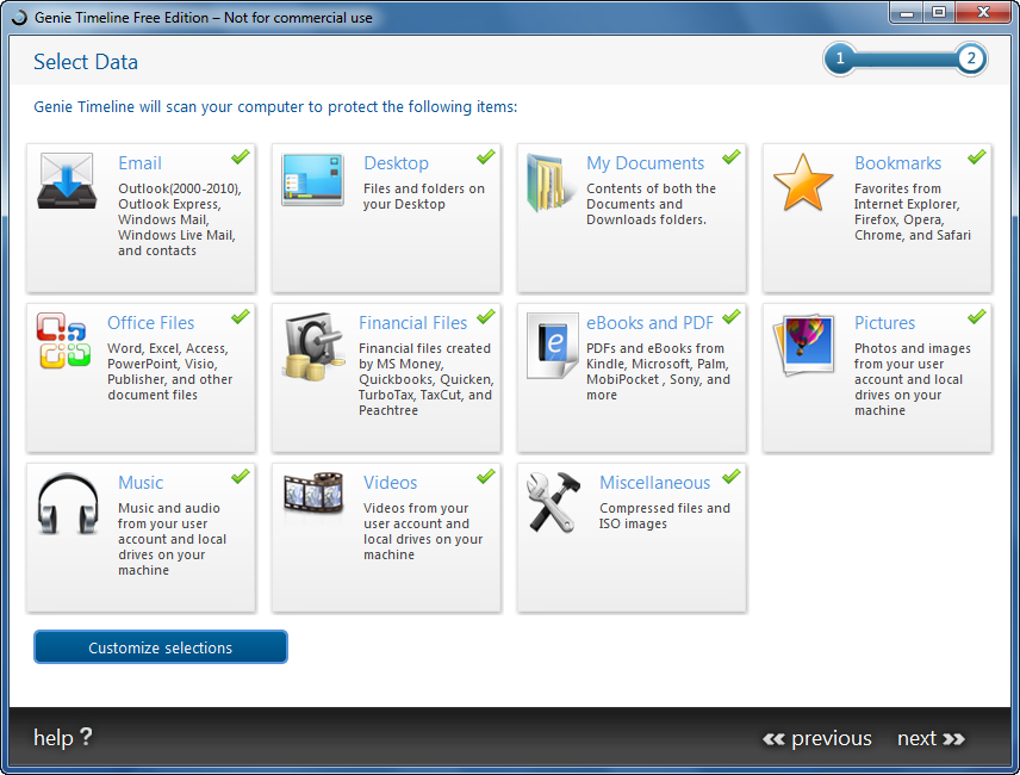
Genie Timeline is a lightweight backup utility that focuses on ease of use above all else. Designed for home users and small‑office environments, the program follows a clear two‑stage workflow: first you choose the source drive, then you pick the file categories you want to protect. Once the initial copy is complete, Genie Timeline runs in the background, silently monitoring changes and automatically adding new files that match the selected categories.
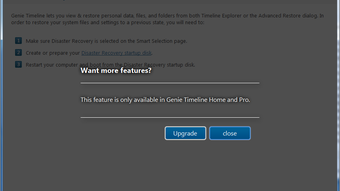
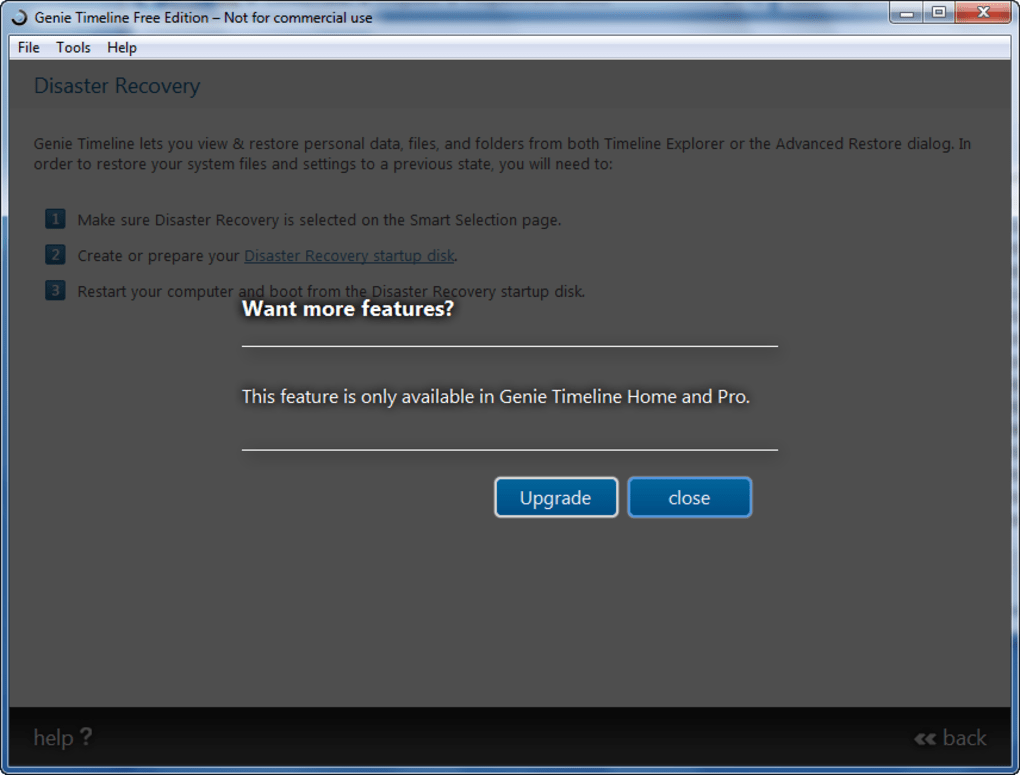
While the free edition does not include advanced scheduling, encryption, or cloud sync, it covers the most common backup scenarios—documents, email archives, photos, and videos—without overwhelming the user with technical options. The interface is deliberately minimalistic; a single “Tools” button is present but currently only displays a placeholder message, reminding users that the premium upgrade unlocks additional capabilities. For anyone who finds full‑featured backup suites intimidating, Genie Timeline offers a free, secure, and straightforward way to keep essential data safe.
Key Features and How the Two‑Stage Process Works
Feature List
- Two‑step backup: select source drive, then choose file categories.
- Automatic monitoring of selected categories after the initial backup.
- Category‑based selection (Documents, Emails, Images, Audio, Video, etc.).
- Simple, uncluttered user interface suitable for beginners.
- Free version with optional upgrade to Home or Professional editions.
- Low system footprint – runs silently in the background with minimal CPU usage.
- Supports both NTFS and exFAT volumes on Windows, and APFS/HFS+ on macOS.
The heart of Genie Timeline’s simplicity lies in its categorization engine. Instead of forcing you to pick individual files or folders, the program groups common file types into logical buckets. When you enable the “Documents” category, for example, every *.docx, *.pdf, *.txt, and similar file type is automatically added to the backup set.
This approach reduces the risk of overlooking important files and speeds up the initial configuration. After the first full copy, Genie Timeline creates a lightweight index of the selected files. From that point onward, a background watcher monitors the source drive for any new or modified items that fit the chosen categories.
When a change is detected, the program queues the file for the next incremental backup, which typically completes within seconds, depending on drive speed.
Although the free edition does not provide encryption or remote storage, the backup files are stored in a standard folder structure on the destination drive, making manual restoration straightforward. Users who need more granular control—such as scheduled backups, compression, or cloud integration—can purchase the Home or Professional upgrade, which adds those capabilities while retaining the same intuitive workflow. Overall, Genie Timeline’s feature set is deliberately narrow, but that focus translates into a reliable, low‑maintenance backup experience for everyday users.
Installation, Usage Guide & Compatibility
Step‑by‑Step Installation
- Download the installer from the official Genie Timeline website (link provided in the CTA below).
- Run the .exe (Windows) or .dmg (macOS) file and follow the on‑screen prompts. The installer will automatically detect the operating system and place shortcuts in the Start menu or Applications folder.
- After installation, launch Genie Timeline. The first screen asks you to select the source drive you wish to protect.
- Choose the destination drive where backup copies will be stored. It can be an external USB, a secondary internal drive, or a network‑attached storage (NAS) share.
- On the next screen, tick the file categories you want to include. The default selection (Documents, Images, Video) is a good starting point for most users.
- Click “Start Backup.” Genie Timeline will scan the source drive, copy the selected files, and create an index for future monitoring.
Using Genie Timeline Day‑to‑Day
Once the initial backup finishes, Genie Timeline minimizes to the system tray (Windows) or menu bar (macOS). Hovering over the icon displays a quick summary: total files backed up, last backup time, and any pending changes. If you need to add or remove categories later, right‑click the icon and choose “Settings.” The program will immediately apply the new preferences and begin backing up any newly‑matched files. Restoring data is equally simple: open the main window, navigate to the backup folder tree, select the files you need, and click “Restore.” The restored files are placed in a location of your choice, preserving the original directory structure.
Compatibility
Genie Timeline is built for 64‑bit Windows 10, 11 and macOS 10.15 (Catalina) or later. The software supports NTFS, FAT32, exFAT on Windows and APFS/HFS+ on macOS, ensuring that most external drives are recognized without extra configuration. While a native Linux version does not exist, the Windows build can run under Wine for advanced users, though this is not officially supported. System requirements are modest: a 1 GHz processor, 512 MB RAM, and at least 100 MB of free disk space for the application itself. Because the program operates primarily as a file watcher, it consumes less than 5 % CPU under normal conditions and negligible memory when idle.
For users who rely on portable devices, Genie Timeline also offers a limited Android companion app that can trigger a backup on the desktop client via a local network connection. An iOS version is planned for future releases. Overall, the compatibility matrix is straightforward, making Genie Timeline a viable choice for most Windows and macOS users who need a no‑frills backup solution.
Pros, Cons & Frequently Asked Questions
Pros
- Extremely easy to set up – only two steps required.
- Automatic background monitoring keeps backups current without manual intervention.
- Low resource usage; runs quietly on older hardware.
- Free version covers core backup needs for documents, photos, and videos.
- Clear category‑based selection reduces the chance of missing important files.
Cons
- No built‑in encryption or cloud sync in the free edition.
- Limited configuration options; power users may find the tool too simple.
- The “Tools” button currently displays a placeholder message.
- No Linux native client.
- Premium upgrades are required for scheduling, compression, and advanced reporting.
FAQ
-
Can Genie Timeline back up to a network drive?
Yes, the free version supports backup to any mapped network share that appears as a regular drive letter on Windows or as a mounted volume on macOS.
-
How does Genie Timeline handle file deletions?
By default, the program does not delete files from the backup location when they are removed from the source. This “retain‑once‑backed‑up” policy protects against accidental loss, but the Premium version adds a sync‑delete option.
-
Is the backup data encrypted?
Encryption is only available in the Home and Professional upgrades. The free edition stores files in plain format on the destination drive.
-
Can I restore individual files or only whole folders?
Restoration is granular; you can pick single files, groups of files, or entire directories through the built‑in restore wizard.
-
What happens if the destination drive runs out of space?
Genie Timeline will pause automatic monitoring and display a warning in the system tray. You can free up space or point the program to a larger backup drive.
Conclusion & Call to Action
Genie Timeline proves that backup software does not need to be complicated to be effective. By limiting the feature set to the essentials—source selection, category‑based copying, and continuous monitoring—the tool delivers a frictionless experience that suits users who simply want “set it and forget it” protection for their most valuable files. While power users may eventually outgrow the free version, the optional Home and Professional upgrades provide a clear path to richer functionality without forcing everyone to pay upfront. If you’re looking for a secure, free, and easy‑to‑install backup solution for Windows or macOS, Genie Timeline is worth a try.
Ready to safeguard your documents, photos, and media? Download Genie Timeline now and start protecting your data with just two clicks. Upgrade later if you need advanced features—no commitment required.
Pros: Simple setup, low resource use, automatic monitoring.
Cons: No native encryption in free version, limited advanced options.







